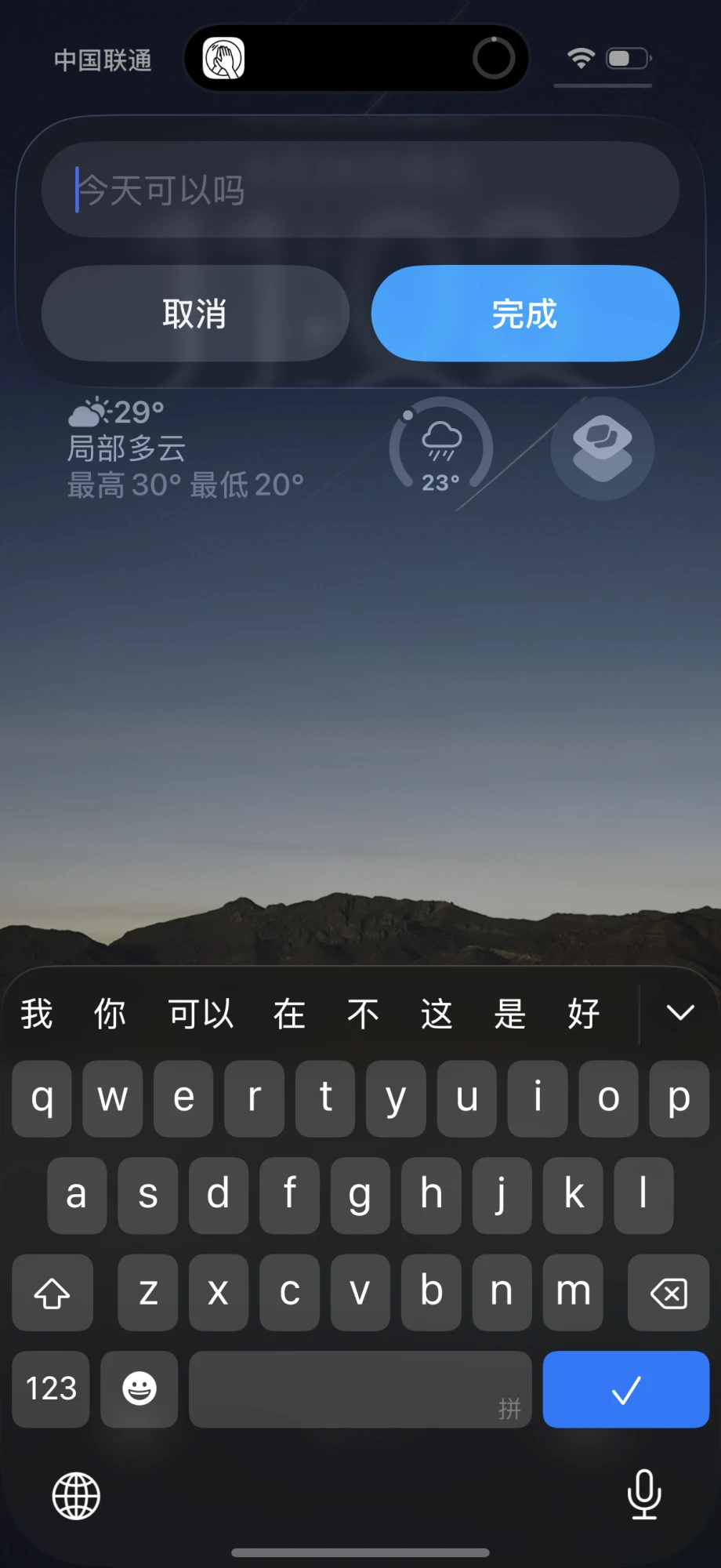
Quick capture and clipping on iPhone
- Download and install these two shortcuts: Save to mynd Clip to mynd
- Put the shortcuts wherever is handy on your iPhone:
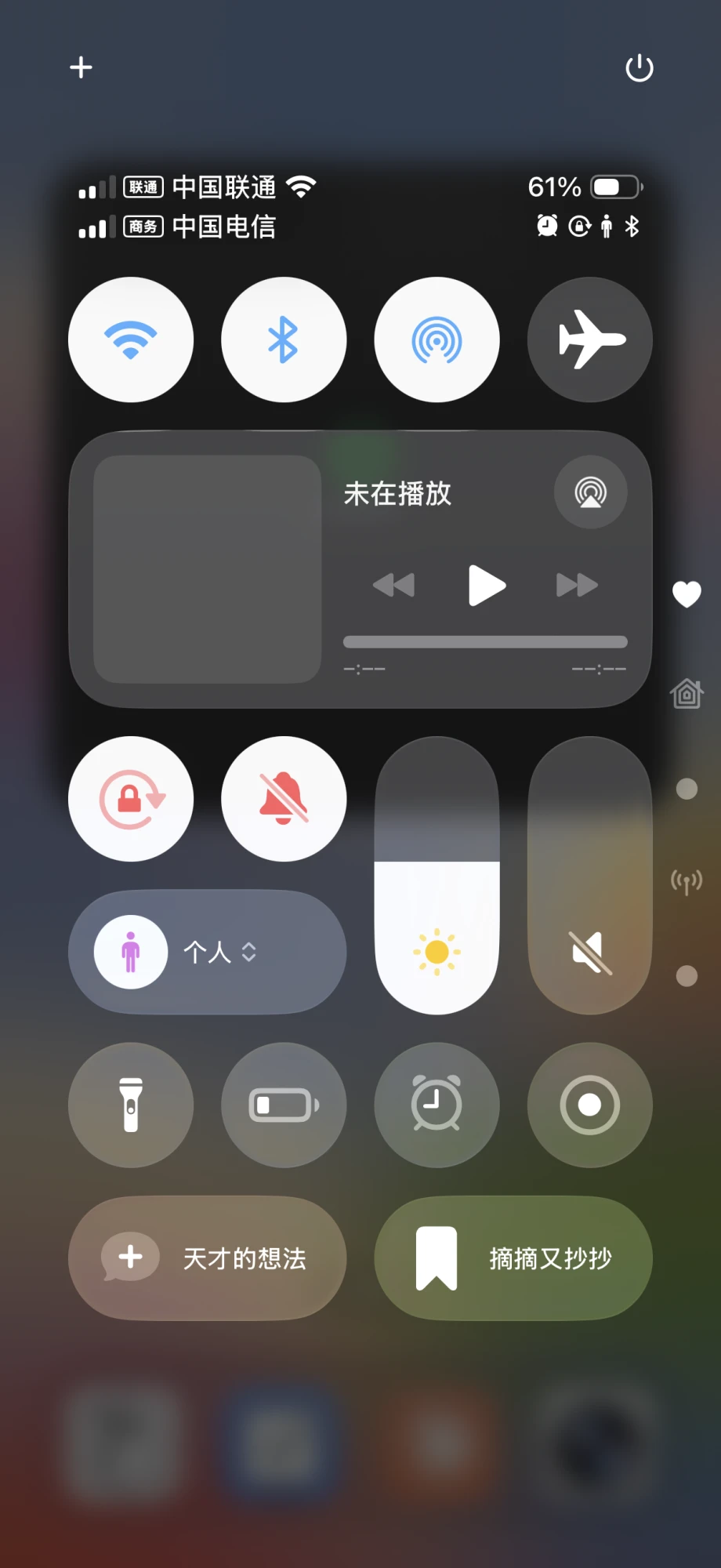
Control Center: Add them to Control Center, pull down from the top-right of the screen, and tap to open the input window — or to clip the text you just copied. This spot is especially handy: it works from the lock screen and while you’re in other apps. Recommended for both shortcuts.
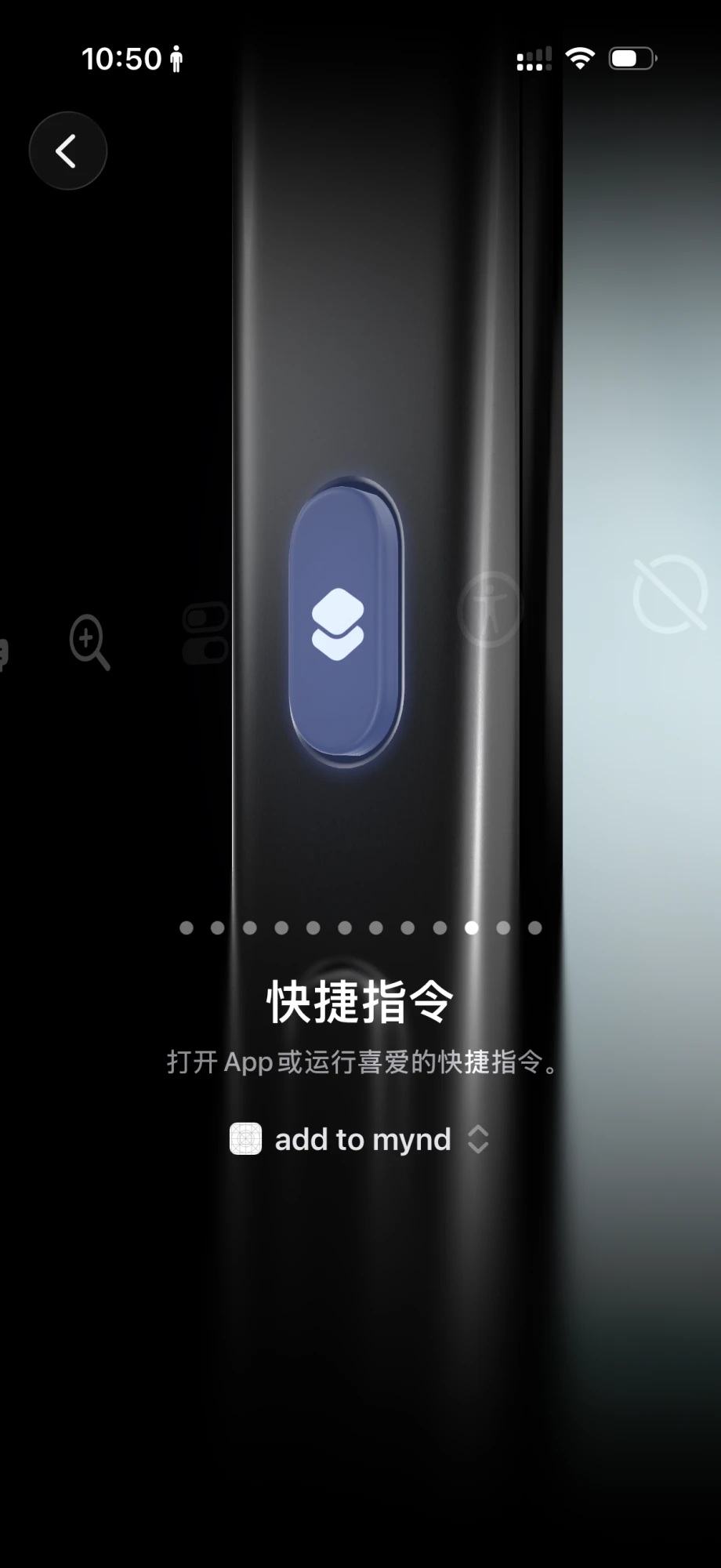
Action Button: On iPhones with an Action Button, open Settings → Action Button, choose “Shortcut,” and pick “Save to mynd” from the dropdown. After that, press and hold the Action Button on the left side anytime to pop up the input window — no need to open the app.
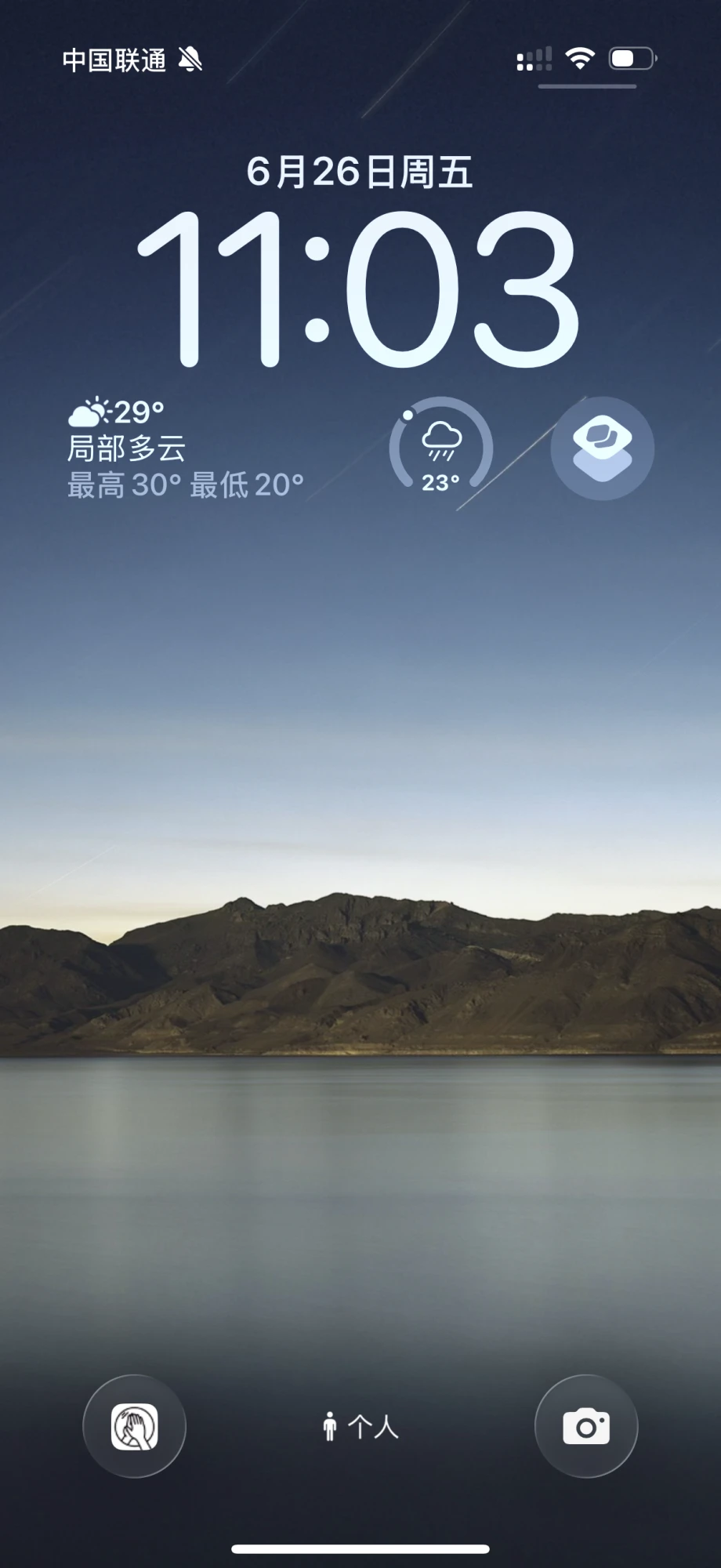
Lock Screen: When customizing your Lock Screen, place a shortcut under the clock or in the bottom corners. Tap it on the Lock Screen to open the input window. The bottom corners need a long press, so the spot under the clock is preferable.
On iPad, Control Center is the recommended spot too.
Quick capture on Mac
- Click the palm icon in the menu bar, or press ⌥M.
- Type your thought in the input bar that pops up, then click the send button or press ⏎ to save it.
Requires version 1.10 or later. Settings has a “Show menu bar icon” toggle.
Quick clip on Mac
- Copy the text you want to clip.
- Click the palm icon in the menu bar, or press ⌥M.
- Click the clip button on the input bar, or just press ⏎, to clip the copied text into mynd.
The clip button is disabled when there’s no text on the clipboard. Requires version 1.10 or later. If you don’t see the icon, turn on “Show menu bar icon” in Settings.
Using mynd on several devices at once
If syncing isn’t working, check these in order:
- Make sure iCloud sync is turned on in Settings on both devices.
- iPhone: tap the button in the top-right of the home screen to open the index, then tap the gear to open Settings.
- iPad: tap the gear to open Settings.
- Mac: click mynd in the top-left of the menu bar and choose Settings, or just press ⌘,.
- Make sure both devices have a mynd folder in iCloud.
- iPhone and iPad: open the Files app and search for “mynd” — you should see two results, one of them in iCloud.
- macOS: click iCloud Drive in Finder; the mynd folder should be at the top level.
- Make sure both devices are signed in to the same Apple ID (shown at the top of System Settings). Note this isn’t necessarily the ID you use for the App Store.
- In rare cases, sync fails because iCloud Drive itself is turned off — check that in Settings too.
Find your original note files
mynd saves all your notes as standard Markdown (.md) files — named by date, one file per day — stored on your own devices (and iCloud). You can find them, back them up, or open your own notes in other apps anytime. No special export needed.
On iPhone and iPad
Open the built-in Files app and type mynd in the search box to find mynd’s notes folder, which holds your .md files arranged by date.
On Mac
With mynd open, click “File” on the left side of the menu bar at the top of your screen, then choose “Open Folder” to open the notes folder.
The .md files are the final archive of your notes. If you edit them directly with another tool, the change takes effect immediately and can’t be undone within mynd.
Share custom themes
mynd’s custom themes can be packaged into a single .myndtheme file for sharing.
Export
- In the theme picker, long-press a custom theme’s thumbnail and choose “Share” to export a .myndtheme file.
- The theme file includes the bubble colors and materials, plus the wallpaper.
Import a custom theme
- In the Files app, tap a .myndtheme file to open mynd with an import prompt; confirm it, then select and use the theme.
- In mynd, open Settings → Appearance and long-press the ”+” at the end of the theme picker to import a theme.
Try these two themes
On iPhone or iPad, download ☁️ or 🌲 and open it in mynd to import.
Custom themes are currently available on iPhone and iPad only.